
If you use WhatsApp Communities to organize multiple groups under one space, you may want to turn the contacts associated with that source into a clearer list that can be reviewed, organized and exported. HeroBot App for Android supports communities as a contact extraction source, then lets you filter the results by country, organize names, and export to Excel, CSV or VCF, or save to Google Contacts.
This guide focuses specifically on the communities workflow. For a broader overview of all supported extraction sources and export formats, see the complete guide to extracting WhatsApp contacts and exporting them.
How is a community workflow different from a group workflow?
When you select groups as the source, you are working with a specific group. A community is a different source option inside the app and can be selected when your contact workflow is based on a WhatsApp Community. The first step is therefore choosing the correct source before extraction.
If you only need a specific group, see the guide to extracting WhatsApp group contacts and exporting them to Excel. If the source is a community, continue with the steps below.
1. Select communities as the contact source
Open HeroBot App and select communities from the available extraction sources. Choose the community you want to work with and start the extraction process. The goal at this stage is to create a set of results that can be reviewed before any export or save action.
Selecting the correct source matters because filtering, naming and export will later be applied to the results extracted from that community.
2. Review the results before filtering
When the results appear, review them before moving to the next step. If you are working with a large community, confirm that the list in front of you is the list you intended to use before creating an Excel file or saving contacts.
Reviewing early can reduce the amount of manual cleanup needed after export and makes the remaining steps easier to manage.
For a more detailed filtering workflow, see the guide to filtering WhatsApp contacts by country before export.
3. Filter the results by country
If the extracted contacts include phone numbers from multiple countries, use the country filter to focus on the market or region you need. This is useful when you do not want every result in the final list.
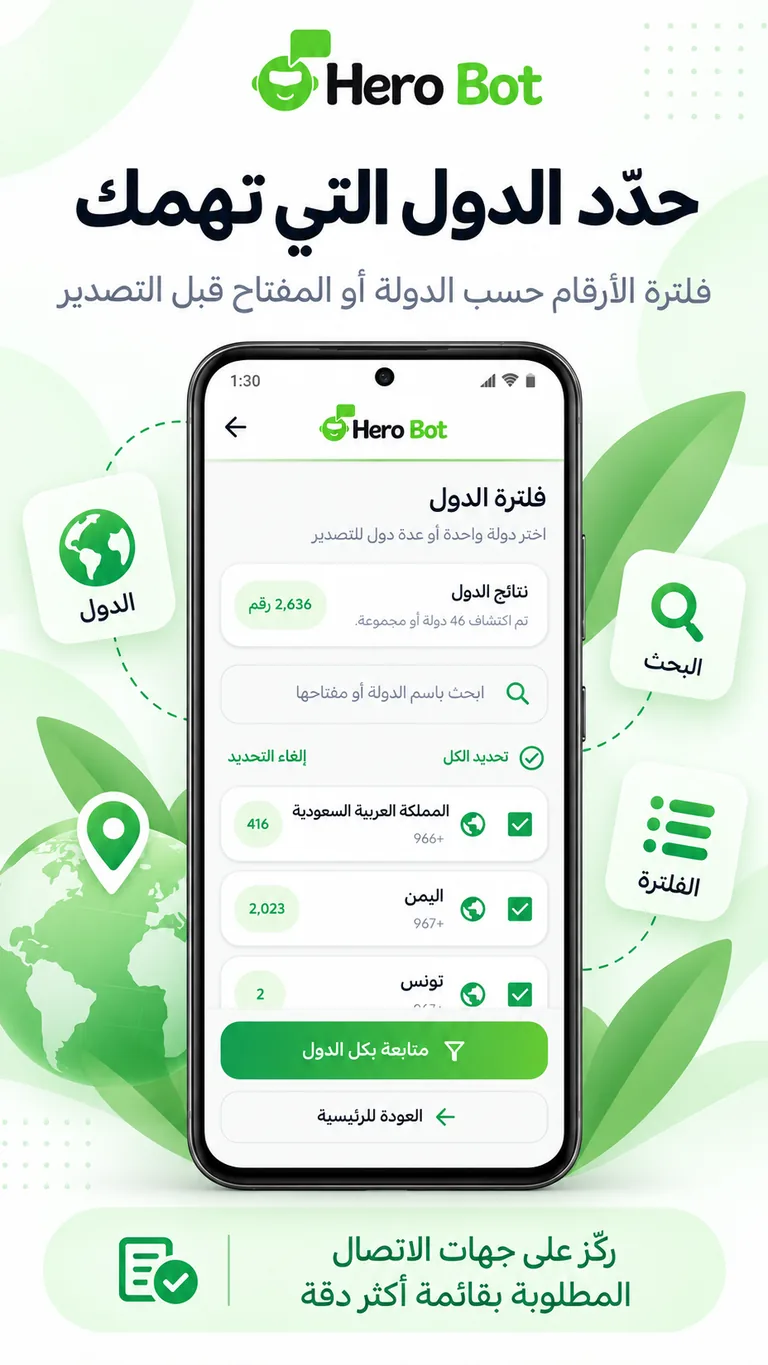
After filtering, review the remaining results again so you know the final list matches the purpose of your export.
For more detail on this stage, see the guide to organizing WhatsApp contact names before export.
4. Organize contact names
Large lists are easier to manage when you use a consistent naming pattern. HeroBot provides contact naming tools before export or saving, so you do not need to rename every contact manually after moving the results to a phone or Google Contacts.
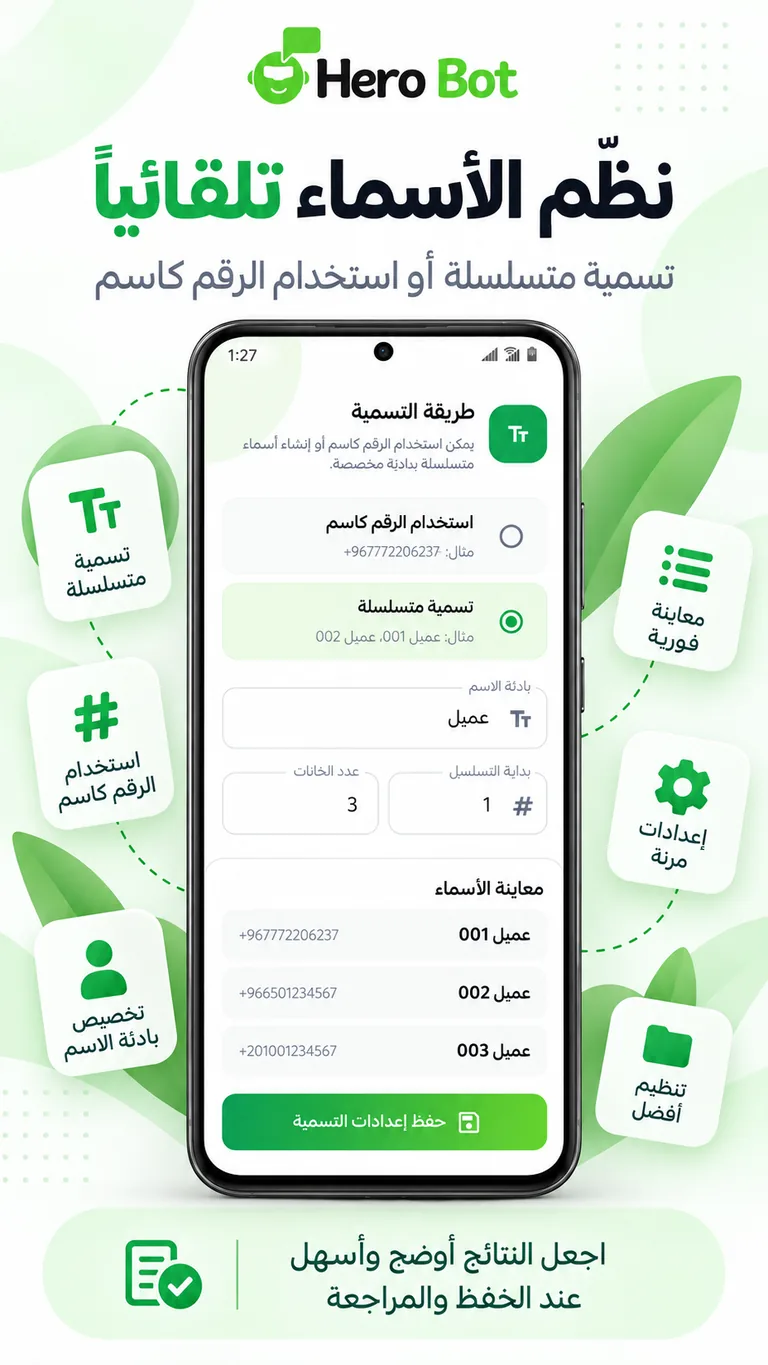
Choose a naming pattern that helps identify the source or purpose of the list, especially when you work with more than one community or maintain several contact lists.
5. Export community contacts to Excel
Choose Excel when you want a spreadsheet that can be opened to review phone numbers and names or sort the list visually. This format is useful when the contact list is part of a spreadsheet-based workflow or when you want to keep an organized file for later review.
Filtering and naming before export means the spreadsheet starts with a cleaner and more useful list.
Before choosing the final format, see the Excel vs CSV vs VCF comparison for WhatsApp contacts.
6. Use CSV or VCF instead of Excel
If the system you plan to use later accepts CSV, you can choose that format instead of Excel. If the goal is to import the results as contacts, VCF is more suitable for applications and devices that support vCard files.
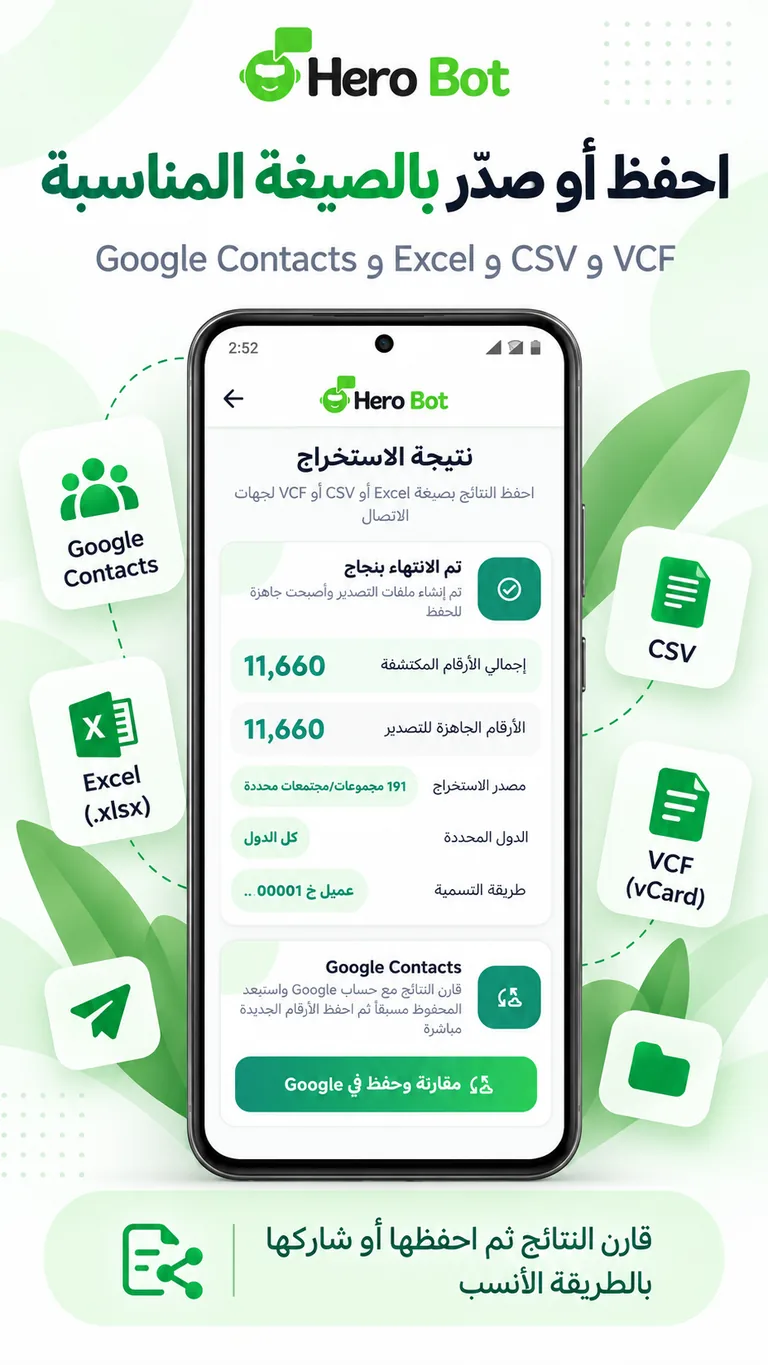
- Excel: for reviewing and working with the list as a spreadsheet.
- CSV: for transferring structured data to systems that accept CSV files.
- VCF: for importing the list as contacts.
- Google Contacts: for saving the results directly to your Google contact list.
7. Save the results to Google Contacts
If you want to use the results directly as contacts, choose Google Contacts instead of creating a file and importing it later. Before saving, make sure you have reviewed the list and completed the filtering and naming steps you need.
Tips for handling a large community contact list
- Start by selecting the correct community as the extraction source.
- Review the results before exporting.
- Use the country filter when you only need contacts from specific regions.
- Apply a clear naming pattern before saving the list.
- Choose the export format based on where you will use the data next.
- Use contact data in line with the legal and privacy requirements that apply to your activity.
Get started with HeroBot App
You can learn more about extraction sources, filtering, contact naming and export formats on the HeroBot App for Android page. If you need customer conversation management and automation through WhatsApp API, visit the HeroBot WhatsApp API platform.
WhatsApp is a trademark of its respective owner. HeroBot is an independent product.