
When WhatsApp conversations contain a large number of phone numbers, copying each one manually and then organizing the list in Excel or saving it to a phone can take a lot of time. HeroBot App for Android brings these steps into one workflow: choose the contact source, extract the results, filter by country when needed, organize contact names, then export to Excel, CSV or VCF, or save to Google Contacts.
Which contact sources can you extract from?
HeroBot App supports several WhatsApp contact sources, so you can start from the source that matches your workflow instead of collecting numbers manually from separate screens.
- Individual chats.
- Groups.
- Communities.
- Labels.
After selecting a source, the app presents the extracted results so you can review them before organizing or exporting the list.
If your main source is a WhatsApp group, see the step-by-step guide to extracting WhatsApp group contacts and exporting them to Excel for a more focused workflow.
If your source is a WhatsApp Community, follow the guide to extracting WhatsApp Community contacts and exporting them to Excel.
1. Extract WhatsApp contacts
Open HeroBot App and select the source type you want to work with. The goal is to turn phone numbers distributed across chats or groups into a structured set of results that can be processed in the next steps.
If your final goal is to create an Excel file or import the contacts into another system, review the extracted results first and make sure you are working with the correct list before exporting.
For a more focused walkthrough, see the guide to filtering WhatsApp contacts by country before export.
2. Filter phone numbers by country
If the extracted results include numbers from multiple countries, use the country filter to focus on the market or region you need. This is useful when you do not want to export every extracted result in one file.
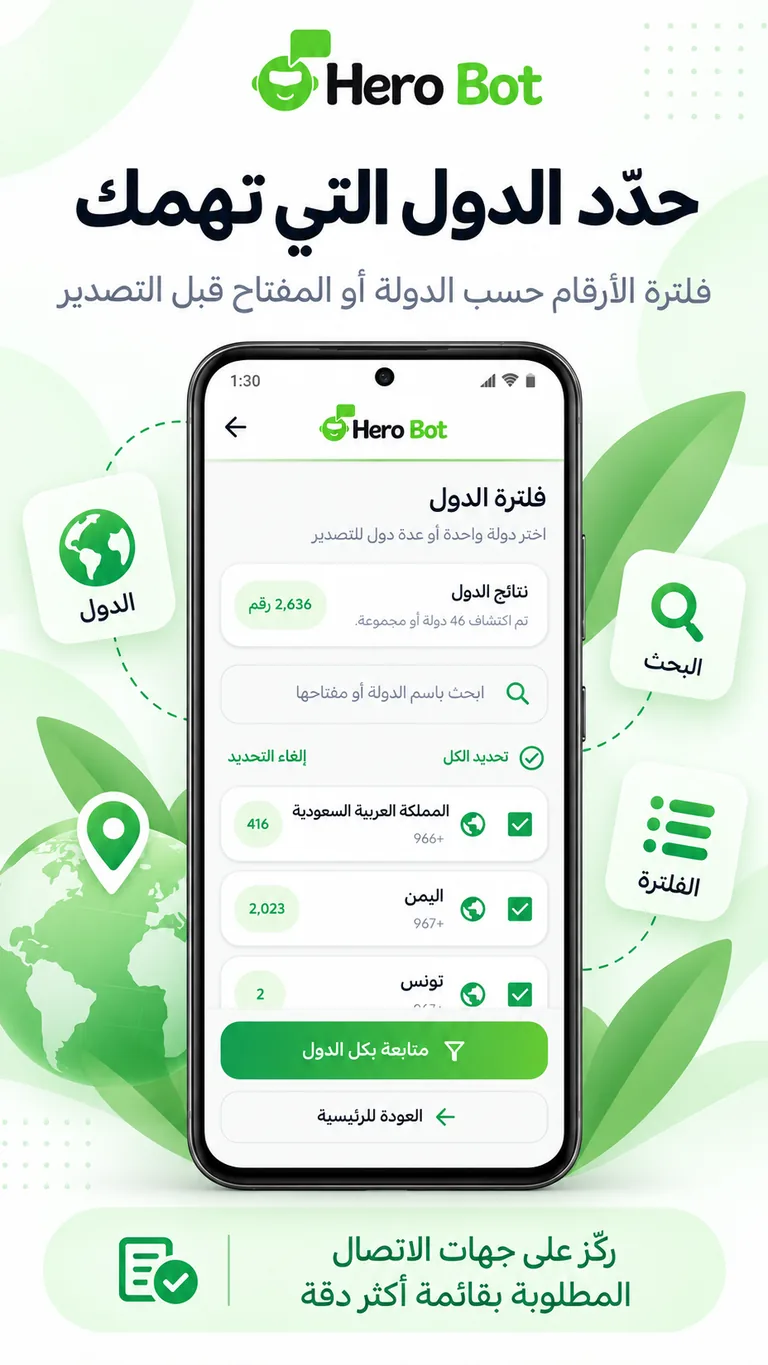
After filtering, continue working only with the selected results, then organize their names or export them in the format that fits your next step.
For a more focused walkthrough of this step, see the guide to organizing WhatsApp contact names before export.
3. Organize contact names before saving
Phone numbers alone are not always enough when you are working with a large list. HeroBot provides contact naming tools so you can apply a clear naming pattern before saving or exporting the contacts.
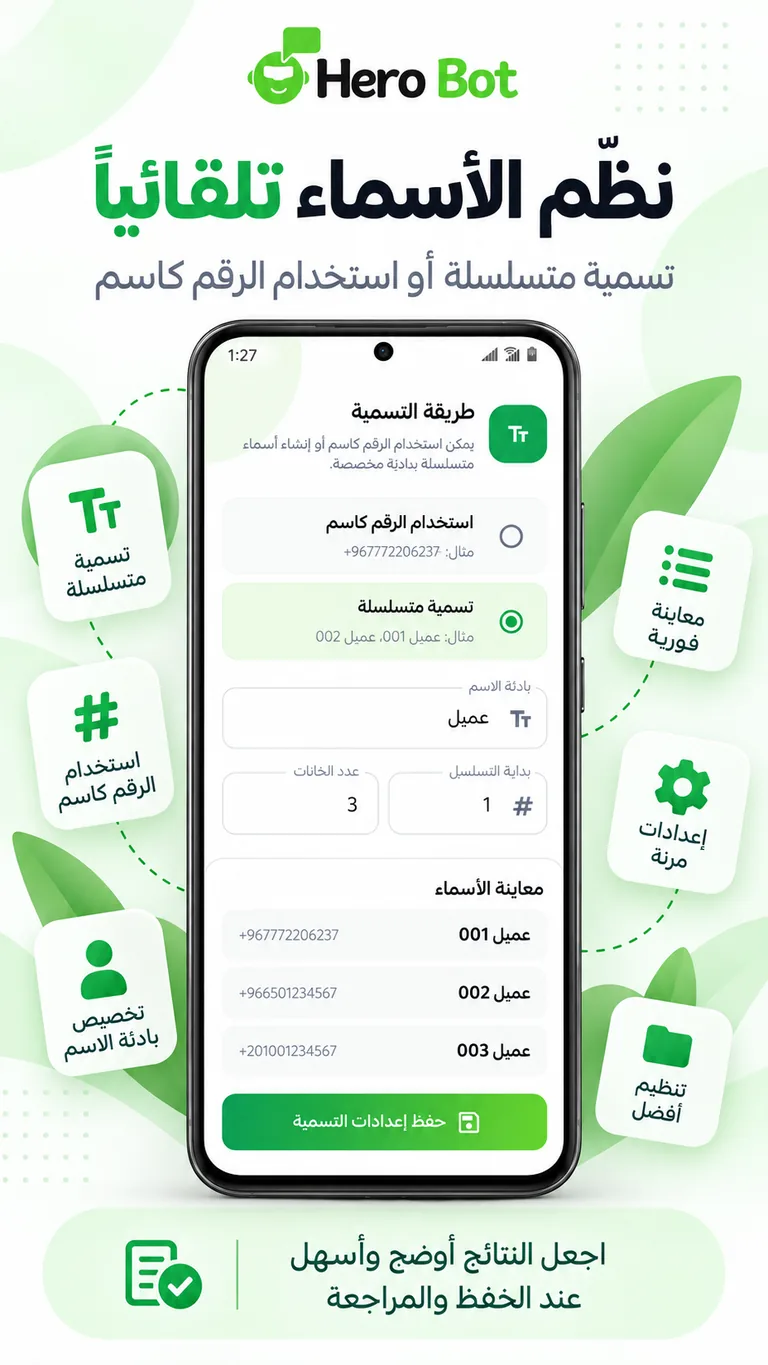
A consistent naming pattern makes it easier to identify the source of a contact list later and keeps exported files easier to review when they are shared with a team or used in another workflow.
If you are deciding between export formats, see the Excel vs CSV vs VCF comparison for WhatsApp contacts.
4. Choose the right export format
After extraction, filtering and naming, HeroBot can export the results in several formats. The best format depends on what you plan to do with the contacts next.
Excel
Choose Excel when you want to review the data in a spreadsheet, sort it visually, or continue working with the list in an Excel-based workflow.
CSV
CSV is a lightweight format that works well for importing structured contact data into many systems and tools.
VCF
VCF is useful when your goal is to import the list as contacts into a contacts app or share it with devices and applications that support vCard files.
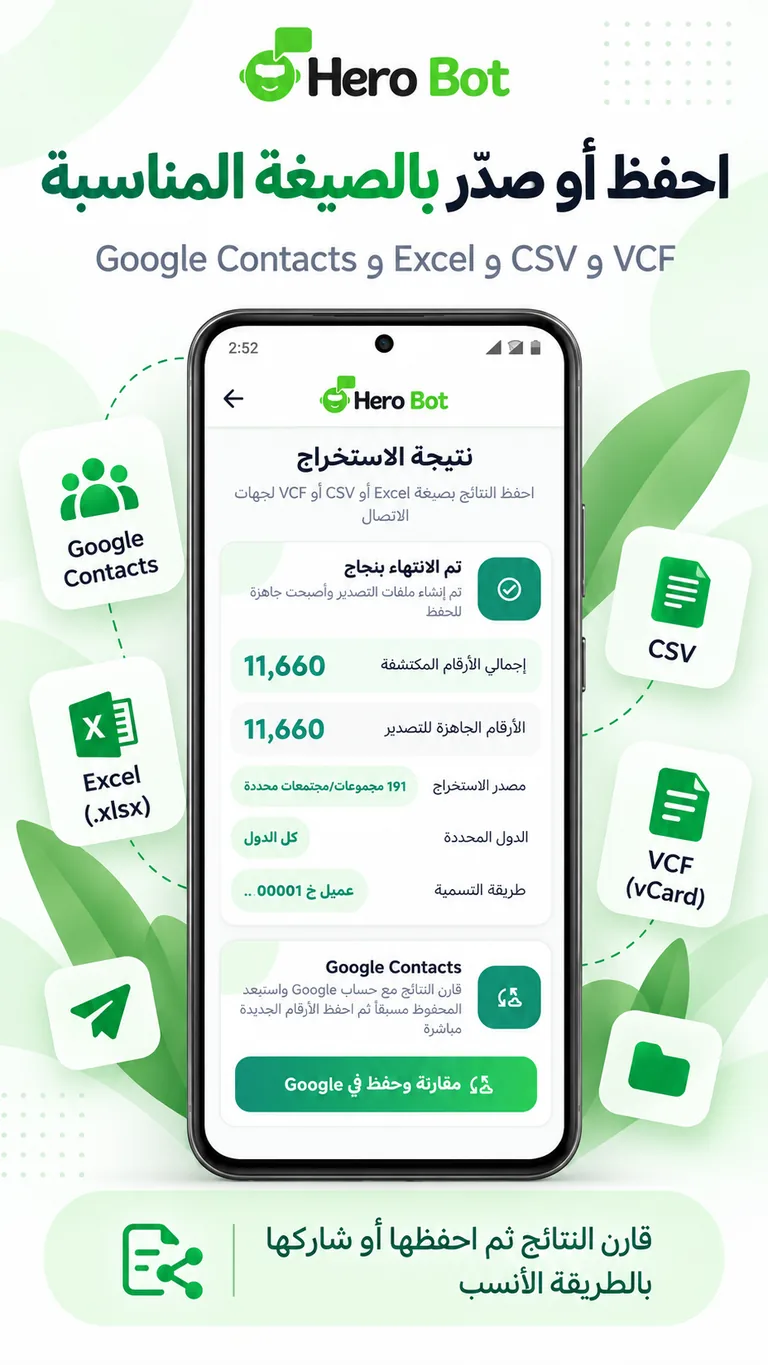
5. Save to Google Contacts
If you do not need an intermediate file, you can use the Google Contacts option to save the results as contacts. Review the names and filters first so the final list matches what you actually want to save.
This workflow is useful when you want the contacts available on devices connected to your Google account without managing a separate export file first.
When should you use Excel instead of VCF?
Use Excel or CSV when reviewing, sorting or moving the data into another system is the priority. Use VCF when the goal is to import the list as contacts. If you want to save directly to your Google account, Google Contacts is the more direct option.
Tips before exporting a large contact list
- Choose the extraction source carefully before starting.
- Use the country filter when you only need contacts from specific regions.
- Apply a clear naming pattern before creating the final file.
- Choose the export format based on where the results will be used.
- Review the final list before saving or sharing it.
Get started with HeroBot App
You can review the app features, workflow and available plans on the HeroBot App for Android page. If your business needs customer conversation management and automation through WhatsApp API, you can also visit the HeroBot WhatsApp API platform.
WhatsApp is a trademark of its respective owner. HeroBot is an independent product.